
Optimize your Lambda functions in a data-driven way with AWS Lambda Power Tuning Screenshot by author | logo by Lambda How To Tune Your ...
Optimize your Lambda functions in a data-driven way with AWS Lambda Power Tuning
How To Tune Your Lambda Memory
Let’s start with a question: how can you determine the memory needed for a Lambda?
One approach could be to deploy and run our lambda and observe the performance manually, but this is too long and boring.
Another approach could be to observe the CloudWatch Logs for the Lambda function to find the value of Max Memory Used.
Go to CloudWatch service’s “Logs Insights” section, select your Lambda function, and try it. You should see something similar to the following:
filter @type = "REPORT"
| stats max(@memorySize / 1024 / 1024) as provisonedMemoryMB,
  min(@maxMemoryUsed / 1024 / 1024) as smallestMemoryRequestMB,
  avg(@maxMemoryUsed / 1024 / 1024) as avgMemoryUsedMB,
  max(@maxMemoryUsed / 1024 / 1024) as maxMemoryUsedMB,
  provisonedMemoryMB - maxMemoryUsedMB as overProvisionedMB
Even better! You can use aws-lambda-power-tuning; it does everything for you.
AWS Lambda Power Tuning is a tool that helps optimize Lambda functions for cost and performance. It uses a state machine, is easy to deploy, is fast to execute, and supports any language. It analyzes execution logs and suggests the best power configuration to minimize costs and maximize performance. It also supports cross-region invocations and parallel execution for fast results.
Basically, you can provide a Lambda function ARN as input and the state machine will invoke that function with multiple power configurations (from 128MB to 10GB, you decide which values). Then it will analyze all the execution logs and suggest you the best power configuration to minimize cost and/or maximize performance.
AWS Lambda Power Tuning in Action
Well, wait. First, how do you deploy the state machine? There are a few options to deploy the state machine, and I chose the fastest way with the AWS Serverless Application Repository for my AWS developer account.
Let’s run it for my Lambda getTerm, which retrieves a taxonomy term, from DynamoDB, by its id. Here I run it manually from the web console, but you can run it manually or programmatically.
Here’s my state machine’s input:
{
  "lambdaARN": "[getTerm-lambda-arn]",
  "num": 50,
  "payload": {
    "pathParameters": {
      "termId": "[term-id]"
    }
  }
}
I could have specified powerValues, which are the list of power values to be tested, but here I used the default values (128MB, 256MB, 512MB, 1024MB, 1536MB, and 3008MB) and 50 invocations for each power configuration. You can find all the options documented here.
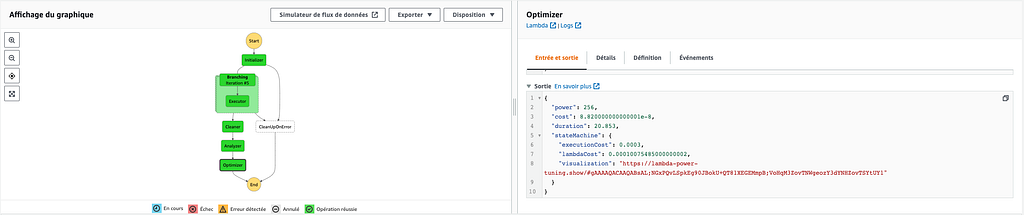
What does the state machine look like?
It’s quite straightforward, and you can easily view each step in the AWS management console.
What output can you expect?
The output provides a visualization URL to inspect the tuning results to identify the optimal tradeoff between cost and performance.
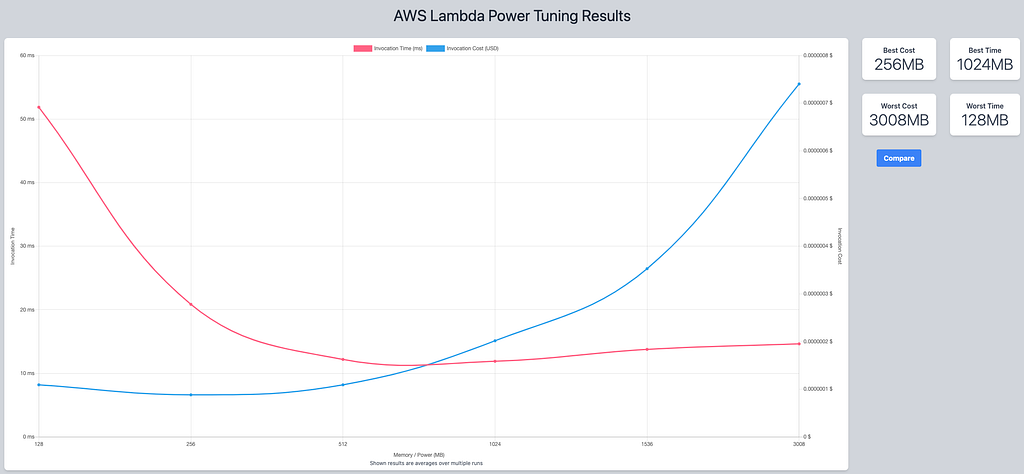
Execution time goes from 52ms with 128MB to 12ms with 512MB for the average cost. Here, I will set 512MB, which seems to be the best tradeoff in my case.
Wrapping Up
Determining the memory needed for your Lambda function can be tedious, but there are several ways to simplify the process. AWS Lambda Power Tuning is one of the fastest and easiest ways to do it.
This tool is a great way to find the optimal trade-off between cost and performance for your Lambda functions, and it will save you a lot of time.
Thanks for reading! I hope you enjoyed yourself and learned something useful from this short article. You should now be ready to play with AWS Lambda Power Tuning on your AWS architecture.
Feel free to share your bests trade-offs.
Tune Your AWS Lambda Functions for Cost and Performance was originally published in Better Programming on Medium, where people are continuing the conversation by highlighting and responding to this story.


No comments
Note: Only a member of this blog may post a comment.